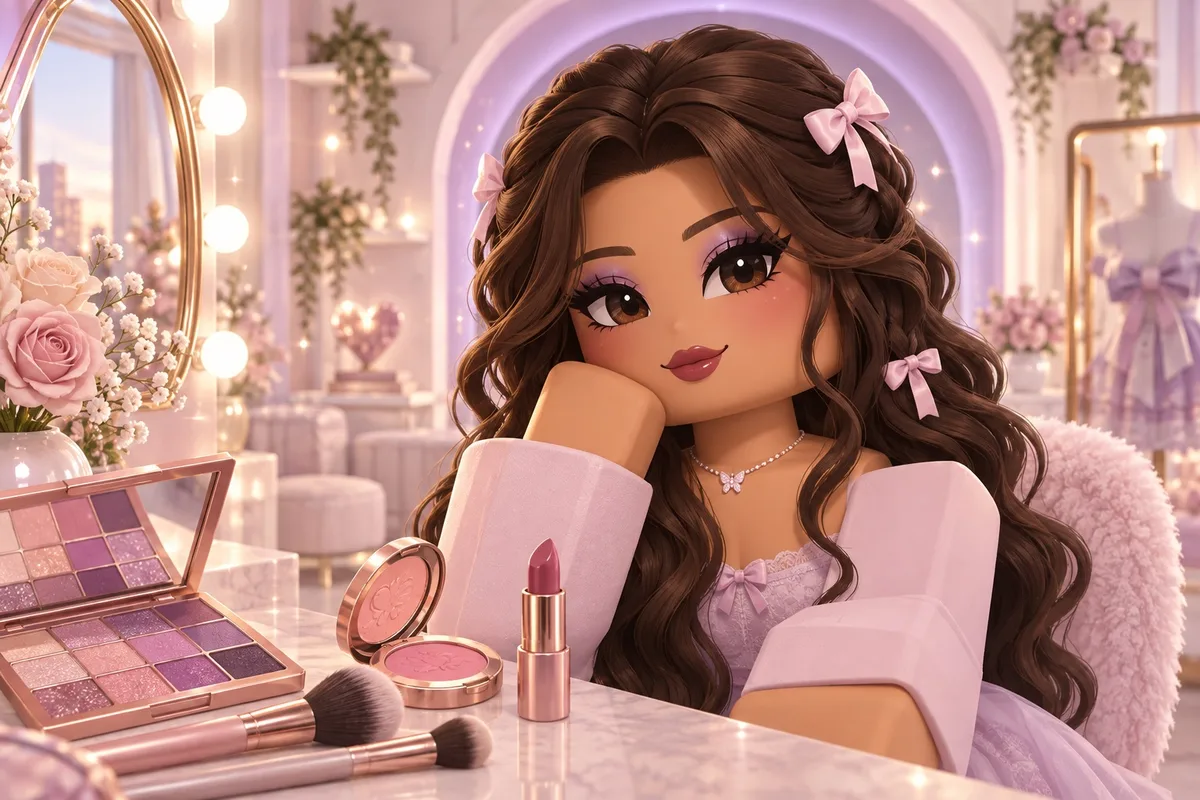
How to play Makeup Mania Roblox: your first look
Understand the creative loop, explore the tools, and get ready for your first themed round.
1. Open the game and get oriented
Use Play Makeup Mania above to open the official experience by Make-up Mania!. The game lets you paint a makeup look, style your character and join themed rounds with player voting.
If Freeplay is available on your screen, use it to get familiar with the tools before joining Competition. If you cannot enter, the access-help chapter below explains what to check.
2. Make a simple practice look
Try this practice sequence. It is a suggested workflow, not a required order or a scoring trick.
- 1
Choose your skin and eye colors, then pick a small palette for the look.
- 2
Select a makeup product from the tool rail. Set the color and brush size before making a small test stroke.
- 3
Work on one area at a time: start with the eyes, add lip color, then add blush or highlights if you want them.
- 4
Check the whole face between changes. Locate Undo before experimenting; keep Clear for when you intend to start over.
3. Finish with hair and lashes
Open the styling options and try a hairstyle. Add lashes separately, then check their position against the eyes. The hair-and-lashes chapter below walks through this part.
For your first attempt, keep the look simple enough that you can inspect and adjust every part.
4. Try a themed round
When you are ready, explore Competition Mode. Read the theme shown in the game, create your look and take part in voting. Follow the on-screen prompts for the current round.
The developer confirms themed rounds, voting and rewards. Exact round lengths, scoring calculations and reward amounts are not established by this guide.
Video by chani · October 3, 2026. Follow the recorded interface, or jump to the part you need.
Watch on YouTubeMakeup Mania brush, color and undo controls
A compact reference to the tools covered in the full guide, with links to the relevant video sections.
Choose a product, then a color
Find the makeup-product rail on the left of the recorded interface. Choose the product you want to work with, then use the color controls on the right.
Before painting a large area, make a small test stroke to check the color. The numbered image below shows where to look in the recorded build.
Adjust your brush before adding detail
The right-hand panel contains Brush Size and Strength controls. For small details, reduce the size and test a short stroke. For broader areas, try a larger size.
Change one setting at a time so you can see its effect. Exact slider values are a creative choice; this guide does not prescribe a setting that works for every look.
Correct a stroke before continuing
Locate Undo and Clear at the bottom right of the recorded interface. Use Undo for a recent mistake; reserve Clear for a deliberate restart and read any current prompts before confirming.
For the recorded correction workflow, use the Undo & clear chapter at 4:50 in the beginner video. Blending and makeup wipes are demonstrated from 11:10.
- 1 · Tool rail: choose the makeup product.
- 2 · Color panel: choose a color.
- 3 · Brush controls: adjust size and strength.
- 4 · Undo / Clear: locate these before experimenting.
Number labels added for this guide. The current game may look different.
How to add hair and eyelashes in Makeup Mania
Find the styling controls, try a look, and understand the position adjustments shown in creator footage.
1. Open Style Studio and search for lashes
In the recorded build, open the Hair / Accessories control along the bottom of the screen. This brings up the Style Studio window.
Choose the face-accessory category, enter lashes in the search field, and look through the matching items.
Check your result: Lash item cards appear in the Style Studio results.
2. Preview one lash item
Choose an item from the search results and select Try on item, the button immediately below its card in this recording. Check the avatar preview on the left of Style Studio before trying another item.
This previews the item inside the experience. It does not give you ownership of the Roblox catalog item.
Check your result: The selected lashes appear on the avatar preview.
3. Adjust the lashes against the eyes
Find the small position controls below the item cards. Use one direction control at a time and check the preview after each change.
If the lash band sits away from the eyelid, move it in small increments until it follows the eye area. Check both eyes before closing the panel.
Check your result: The lash band sits close to the eye area, with no obvious offset.
Adding hair uses the same studio
Switch to the hair category, choose a style and preview it. Check its position around the face, then use the available adjustment controls as needed. The video below shows the hair section from 0:05.
If you cannot find the same buttons
These screenshots show the October 4 recording. The October 5 video in the updates chapter covers a newer set of hair and lash buttons; compare that footage if your screen differs.
If the item does not offer a free preview, read its current label before selecting a paid option.
Video by chani · October 4, 2026. A focused look at styling and placement controls.
Watch on YouTubeFind the game & start playing
The official game link, plus what to check when the game does not show up or you cannot join.
Start with the right game
Open the official Roblox experience using the Play on Roblox link. Check that the creator is Make-up Mania! and the address contains the game ID 117935850321807. Update labels in the title can change.
Use the developer and game ID to distinguish this experience from similarly named games.
Cannot find it in search?
Open the direct link to distinguish search problems from account restrictions. A missing search result does not mean the game was deleted.
If the page opens, read the message displayed for your account. Keep its exact wording when looking for help.
The page opens, but you cannot join
Roblox Kids and Select accounts use selected game catalogs. Select generally covers ages 9–15, with regional differences. A direct link may display a game page even when that account cannot play it.
Check the account-access message and the official help pages below. Completing an age check does not guarantee access to any particular experience.
Is Makeup Mania 16+?
A creator reported a 16+ restriction, but current eligibility across regions and account types is unverified. Check the message Roblox shows your account.
For incorrect age information or parental settings, follow Roblox’s supported account or linked-parent process.
Codes: what is confirmed?
The current verification status of reward codes, without invented codes or an assumed redemption menu.
No verified codes in this Wiki
No working Makeup Mania Roblox code or redemption flow was verified in our October 5 review. This does not mean codes cannot exist.
Where to look for announcements
Check the developer community for code announcements and confirm they refer to this Roblox experience.
Do not mix up coupons and game rewards
Cosmetics-store coupons are unrelated to Makeup Mania Roblox rewards.
Only traceable codes with a clear verification status will be listed here.
Beta updates & what changed
Dated observations and creator walkthroughs, with clear separation between official pages and community coverage.
October 5 · New customization controls
The October 5 walkthrough shows updated eye, hair, lash and brow controls. It is creator coverage, not an official patch log.
October 5 · Layers in the game title
The game title displayed [LAYERS] when checked. The label alone does not establish how layers work or when they launched.
October 3–4 · Getting started tutorials
The beginner video was published October 3; the hair-and-lashes tutorial followed October 4. These are tutorial dates, not feature release dates.
Where to check next
Follow the game page and developer community for announcements. These dated notes are not a live update feed.
Creator walkthrough · October 5, 2026. Community coverage, not an official patch log.
Watch on YouTubeSources & what to double-check
These guides use official descriptions and chani’s recorded gameplay, not our own in-game tests. Button locations, item availability and paid features may change. Round timing, reward values and save behavior have not been independently verified.
Ready for your next look?
Keep this guide nearby while you explore the studio.
Play Makeup Mania Back to the top ↑